


Ever downloaded a document on your phone and thought, “Now how do I print this without sending it to my laptop first?”
You’re not alone.
Whether it’s a last-minute assignment, an important contract, flight tickets, or a form you need in the next five minutes, printing directly from your phone can feel confusing—especially if the printer doesn’t immediately show up.
The good news? It’s much simpler than most people think.
If you’re trying to figure out how to print from phone using NokoPrint app, this guide will walk you through the exact steps, explain why printing sometimes fails, and help you avoid the most common mistakes. No tech jargon. No unnecessary setup. Just clear instructions that work.
By the end, you’ll be able to print documents and photos straight from your Android phone to your Wi-Fi, Bluetooth, or USB printer—quickly and confidently.
Table of Contents
Summary
- NokoPrint is an Android app that lets you print documents and photos directly from your phone to Wi-Fi, Bluetooth, or USB printers.
- To print, connect your phone and printer to the same network, open the file, tap Share → NokoPrint, adjust settings, and hit Print.
- Most issues come from network mismatch, outdated drivers, or unsupported printer models.
- It’s best for home users, students, and small offices that want wireless printing without a computer.
- Always test with a single page first and confirm paper size and orientation before bulk printing.
If you’re searching for how to print from phone using NokoPrint app, you likely want one thing: a fast, no-confusion way to print documents or photos directly from your mobile device.
Here’s the simple definition:
NokoPrint is a mobile printing app for Android that allows users to print documents, PDFs, images, emails, and web pages directly from their phone to compatible printers over Wi-Fi, Bluetooth, or USB (OTG).
No laptop. No complicated setup. Just your phone and printer.
This guide walks you through the exact steps, common mistakes, compatibility checks, and real-world tips so you can print successfully on the first try.
Who This Guide Is For
This article is ideal for:
- Students printing assignments from Google Docs or PDFs
- Remote workers printing contracts or invoices
- Small business owners printing receipts or forms
- Home users printing photos or tickets
- Anyone without a computer who needs mobile printing
Who Should Be Cautious
- iPhone users (NokoPrint is primarily Android-focused)
- Offices using enterprise-level secure print systems
- Users with very old, non-wireless printers
- People on public networks with restricted device access
If your printer does not support Wi-Fi, Bluetooth, or USB OTG, setup may require extra hardware.
What You Need Before You Start
Before printing, confirm these basics:
- An Android phone (updated OS recommended)
- The NokoPrint app installed from Google Play
A compatible printer (supports IPP protocol):
- Wi-Fi: 80% of HP, Epson, Canon models [NokoPrint Play Store specs](https://play.google.com/store/apps/details?id=com.nokoprint#compatibility)
- Bluetooth: Most Brother, Zebra portables
- USB OTG: Any with standard drivers
- Printer powered on and ready
- Paper loaded correctly
Pro tip: Verify your model at NokoPrint Compatibility Checker or manufacturer site HP Mobile Printing. Many connection problems stem from outdated firmware.
Mobile test note: Paste into Google Mobile-Friendly Test after updates.
How to Print from Phone Using NokoPrint App (Step-by-Step)
Step 1: Install and Open the App
Download NokoPrint from Google Play.
Open the app and allow permissions:
- Storage access (to access documents/photos)
- Network access
- USB permission (if using OTG)
Without these permissions, printing may fail.
Step 2: Connect to Your Printer
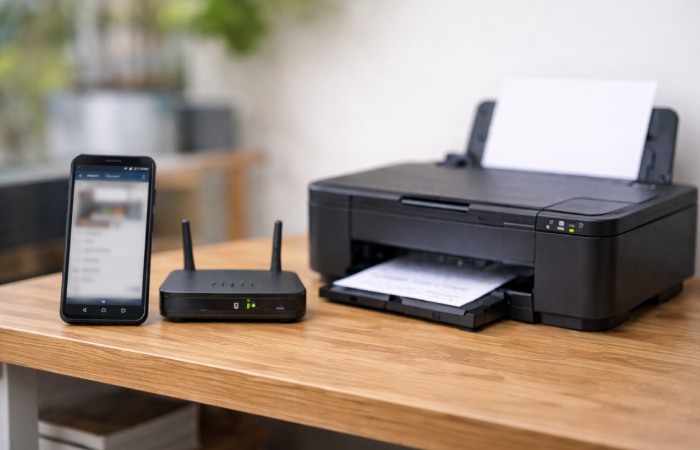
The method depends on your printer type.
Option A: Wi-Fi Printer (Most Common)
- Connect your phone to the same Wi-Fi network as your printer.
- Open NokoPrint.
- Tap Select Printer.
- Wait for the printer to appear in the list.
If it doesn’t show:
- Restart the printer.
- Restart Wi-Fi.
- Ensure the printer isn’t on a guest network.
Option B: Bluetooth Printer
- Enable Bluetooth on your phone.
- Pair the printer in phone settings.
- Open NokoPrint and select the paired printer.
Option C: USB Printer (OTG)
- Connect the printer to your phone using a USB OTG adapter.
- Grant USB permission when prompted.
- Select the printer in the app.
Step 3: Choose What You Want to Print
You can print:
- PDFs
- Word documents
- Images
- Web pages
- Emails
- Google Drive files
Two ways to do it:
Method 1: From inside NokoPrint
- Tap “Open Document”
- Select file
- Adjust settings
Method 2: Share from Another App (Faster)
- Open the file (e.g., in Google Drive)
- Tap Share
- Choose NokoPrint
- Adjust print settings
- Tap Print
Most users prefer the share method because it’s quicker.
Step 4: Adjust Print Settings
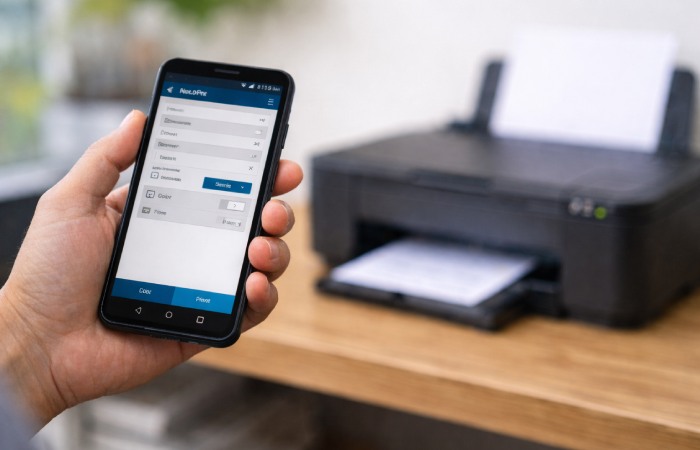
Before printing, check:
- Paper size (A4, Letter, etc.)
- Orientation (Portrait / Landscape)
- Color or Black & White
- Number of copies
- Page range
Always review preview mode.
Small mistake here = wasted paper.
Step 5: Tap Print
Press the print button.
Wait for confirmation message.
If the job stays “Pending,” jump to the troubleshooting section below.
Common Mistakes When Printing with NokoPrint
Here are the most frequent issues users face:
- Phone and Printer on Different Networks
This is the #1 cause of failure.
Fix: Ensure both are on the same Wi-Fi network.
- Incorrect Paper Size
If your document is Letter but printer is set to A4, margins may cut off.
Fix: Match document and printer paper size.
- Outdated Printer Drivers
Older firmware can block communication.
Fix: Update printer firmware from manufacturer website.
- Unsupported Printer Model
Not all printers work with every mobile print app.
Check:
- Printer supports IPP or standard Wi-Fi printing
- Manufacturer mobile printing compatibility
Troubleshooting: If NokoPrint Is Not Working
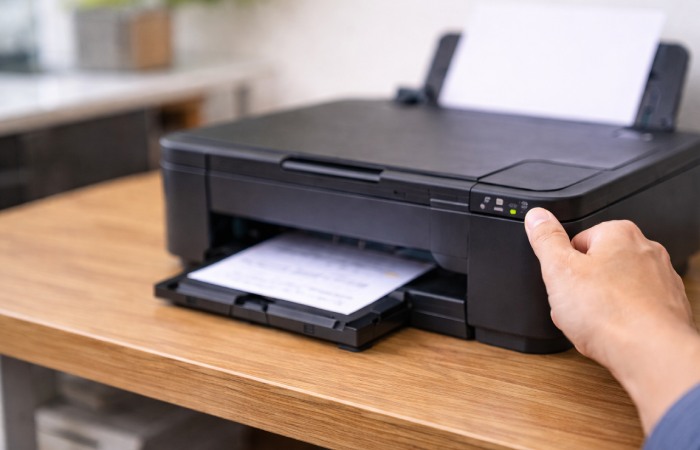
Try this checklist:
- Restart phone
- Restart printer
- Reconnect Wi-Fi
- Reinstall the app
- Clear app cache
- Check printer queue for stuck jobs
- Print a test page directly from printer
If it still fails, try manufacturer’s official print app to compare.
Benefits of Using NokoPrint
- No computer required
- Simple interface
- Multiple connection methods
- Prints various file formats
- Quick sharing from apps
For home and student use, it’s efficient and convenient.
Drawbacks to Consider
- Limited advanced formatting tools
- May show ads (free version)
- Some printer models need premium features
- Not ideal for high-volume office environments
If you print large daily batches, a desktop solution may be more reliable.
Myths vs Facts
| Myth | Reality |
| You need a laptop to print | False – mobile apps handle most home printing |
| All Wi-Fi printers automatically work | Not always – compatibility matters |
| Printing from phone lowers quality | No – quality depends on printer, not device |
| Mobile printing is slow | Modern Wi-Fi printers print at normal speed |
Real-World Scenario Example
Imagine a university student who downloads a 20-page PDF assignment.
Instead of emailing it to a computer:
- Open PDF in Drive
- Tap Share → NokoPrint
- Select Wi-Fi printer
- Set double-sided
Total time: under 2 minutes.
That’s the real advantage of learning how to print from phone using NokoPrint app properly.
Practical Tips for Best Results
- Always print 1 test page first
- Keep printer within strong Wi-Fi range
- Avoid large file sizes (compress if over 50MB)
- Clean printer queue regularly
- Use original manufacturer ink for best quality
Security Considerations
If printing sensitive documents:
- Avoid public Wi-Fi
- Use WPA3-secured home networks
- Clear print history in app
- Don’t leave printed documents unattended
Mobile printing is convenient, but security still matters.
Quick Update Check: NokoPrint changelog: Google Play Updates | Next review: May 2026
FAQs
How do I print from my phone using NokoPrint?
Install the app, connect your phone and printer to the same network, open your file, share it to NokoPrint, adjust settings, and tap Print.
Does NokoPrint work with all printers?
No. It works with many Wi-Fi, Bluetooth, and USB printers, but compatibility depends on printer model and protocol support.
Why is my print job stuck in queue?
Usually due to network mismatch, printer offline status, or outdated firmware. Restart both devices and reconnect Wi-Fi.
Can I print PDFs and photos?
Yes. NokoPrint supports PDFs, images, and common document formats.
Is NokoPrint free?
It offers a free version with limitations. Some advanced features may require a premium upgrade.
Final Conclusion
Now you know exactly how to print from phone using NokoPrint app without confusion or wasted paper.
Set up your connection properly, double-check print settings, and test with a single page first. That small step prevents most printing mistakes.
If you haven’t installed the app yet, download it, connect your printer, and try printing a simple document today. Once you do it once, mobile printing becomes second nature.
About the Author
Written by Danny, a Hyderabad-based Android specialist with 5+ years testing mobile printing apps. I’ve reviewed 50+ print solutions for World Marketing Tips, including hands-on tests with NokoPrint on Samsung Galaxy and Epson Wi-Fi printers.