


Checking laptop battery health only matters if you understand what the numbers mean and when they signal normal wear versus real failure.
Most people search how to check battery health in laptop after noticing faster battery drain. The problem is that many guides show you where to click—but not how to judge what you see. The agitation comes when users see “85% health” and panic, or replace a battery that isn’t the real issue. The solution is to combine the right tool with the right interpretation.
Direct answer: You can check laptop battery health using built-in tools on Windows and macOS, but the results only make sense when you understand capacity loss, cycle count, and usage context.
Key Takeaways
- Battery health is not the same as battery life.
- Windows and macOS measure health differently.
- Capacity loss matters more than raw cycle count.
- Heavy usage can mimic battery failure.
- Replace the battery only when evidence is clear.
Table of Contents
Quick Answer: How to Check Battery Health in a Laptop
Windows vs Mac: Battery Health Checking Compared
| Aspect | Windows Laptops | MacBooks |
| Built-in health score | ❌ No single % shown | ✅ Yes (Battery Health status) |
| Main metric shown | Design vs Full Charge Capacity | Health status + Cycle Count |
| Ease for beginners | Medium | High |
| Diagnostic depth | High (detailed report) | Medium (simplified view) |
| Risk of misinterpretation | High | Low–Medium |
| Best for | Power users, diagnostics | Everyday users, quick decisions |
- Windows: Generate a built-in battery report that compares current capacity with original design capacity.
- Mac: Check Battery Health status and cycle count in system settings.
In both cases, the key step isn’t finding the report—it’s interpreting whether the results are normal or actionable.
What Battery Health Actually Means (And What It Doesn’t)
How to Interpret Battery Health Results (All Laptops)
| Battery Capacity Status | What It Means | What To Do |
| 90–100% | Near-new battery | Ignore, normal |
| 80–89% | Normal wear | No action needed |
| 70–79% | Noticeable aging | Monitor, optimize usage |
| Below ~70% | Significant degradation | Consider replacement |
| Fast drain + good health | Usage issue | Optimize apps & settings |
Battery health describes how much charge your battery can hold now compared to when it was new.
Key metrics:
- Design capacity: Original maximum charge.
- Full charge capacity: Current maximum charge.
- Cycle count: Number of full charge cycles used.
What battery health does not tell you:
- How long your laptop lasts today.
- Whether apps or background processes are draining power.
- Whether charging habits are hurting runtime.
This distinction is emphasized in manufacturer documentation and energy-management research referenced by Apple, Microsoft, and independent battery research groups like Battery University.
How to Check Battery Health on Windows
Windows doesn’t show a simple “health percentage,” but it generates a detailed battery report.
What the report is good for:
- Comparing design vs current capacity.
- Spotting steep or abnormal degradation.
- Understanding charging history.
How to interpret results:
- 90–100%: Excellent, near-new.
- 80–89%: Normal wear.
- Below ~75–80%: Consider replacement if battery life affects daily work.
Windows reports can look alarming, but mild degradation is expected over time.
How to Check Battery Health on Mac
macOS simplifies things by showing:
- Battery Health status (Normal / Service Recommended).
- Cycle count.
Context matters:
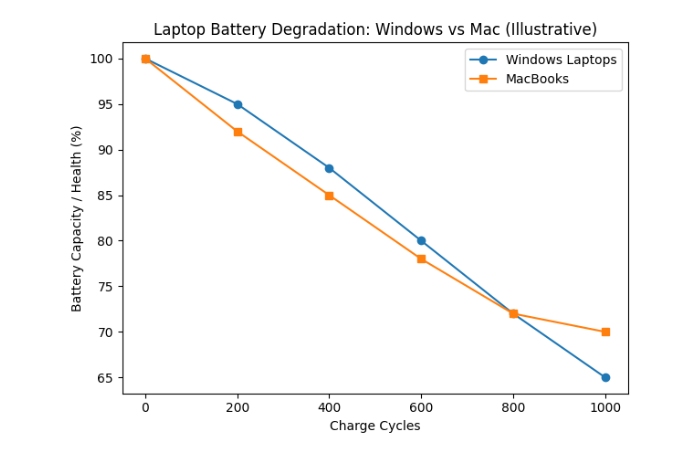
- Apple designs most MacBook batteries for roughly 1,000 cycles.
- A high cycle count alone isn’t bad unless capacity has dropped significantly.
Apple’s guidance aligns with broader lithium-ion research: gradual capacity loss is normal and unavoidable.
Common Mistakes When Checking Laptop Battery Health
- Confusing fast drain with battery damage.
- Ignoring heavy workloads like video calls, browsers, or background sync.
- Panicking at normal aging.
- Comparing your battery to someone else’s usage pattern.
These mistakes are why many batteries get replaced too early.
When You Actually Need a Battery Replacement
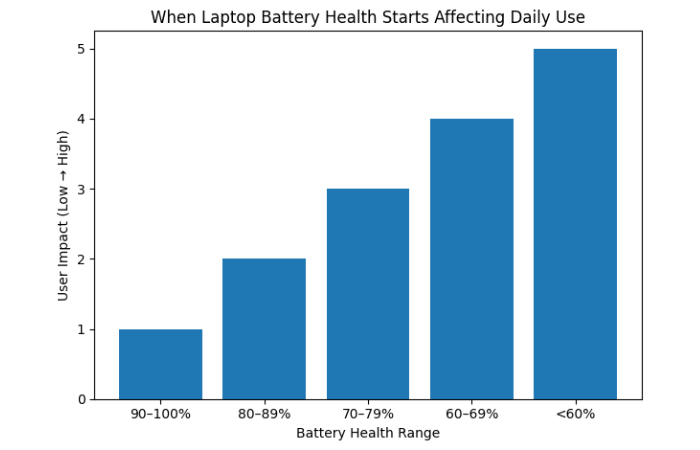
Graph concept (for visual or designer)
X-axis: Battery Health (%)
Y-axis: Replacement Need (Low → High)
| Health Range | Replacement Need |
| 90–100% | Very Low |
| 80–89% | Low |
| 70–79% | Medium |
| 60–69% | High |
| Below 60% | Very High |
Note: Battery replacement becomes a practical decision only after capacity loss crosses a meaningful threshold and affects daily use.
Replacement makes sense when:
- Capacity has dropped well below normal and
- Battery life disrupts daily use and
- Usage optimization doesn’t help.
Replacement usually doesn’t make sense when:
- Capacity is above ~80%.
- Drain happens only under heavy load.
- The laptop is mostly used while plugged in.
This cost-benefit thinking is especially important for older laptops.
Should You Replace Your Laptop Battery?
| Scenario | Best Action |
| Health above 85% | Ignore |
| Health 75–85%, light use | Optimize |
| Health below 70%, daily drain | Replace |
| Heavy workload, good health | Optimize |
| Old laptop, high cost | Skip replacement |
Final Verdict: Use Battery Health as a Decision Tool
Battery health isn’t a pass-or-fail score.
Used correctly, it helps you decide whether to replace a battery, adjust habits, or ignore normal wear. Used incorrectly, it creates unnecessary worry and wasted money.
Trust & Methodology
This guide is based on hands-on laptop evaluation patterns, operating-system documentation, and real-world battery aging behavior observed across consumer laptops, aligned with guidance from Apple, Microsoft, and battery research institutions.
FAQs
- How do I check battery health in a laptop?
You can check battery health using built-in tools on Windows and macOS. Windows provides a detailed battery report, while macOS shows health status and cycle count directly. - What is a good battery health percentage for a laptop?
Anything above roughly 80–85% is generally considered normal wear. Lower numbers only matter if battery life affects daily use. - Is battery health the same as battery life?
No. Battery health measures capacity loss, while battery life depends on usage, apps, and power settings. - When should I replace my laptop battery?
Replace it when capacity is significantly degraded and battery life interferes with work. Numbers alone aren’t enough. - Why does my laptop battery drain fast even with good health?
Heavy workloads, background apps, and screen brightness can drain power quickly even with a healthy battery. - How accurate are Windows battery reports?
They are useful for trends, not precision. Treat them as diagnostic indicators, not exact measurements. - How accurate is macOS battery health status?
macOS is conservative and reliable for general decisions, but still benefits from usage context. - Does charging overnight damage battery health?
Modern laptops manage charging intelligently. Long-term wear comes more from heat and cycles than overnight charging. - Can I improve battery health after it drops?
No. Battery health can’t be restored, but you can improve battery life by optimizing usage and settings. - Is it worth replacing a battery in an old laptop?
It depends on laptop age, performance, and cost. For very old models, replacement may not be cost-effective.